 ASPL Console
Open Settings
At the command-ready prompt, submit settings or إعدادات, with no arguments. Ctrl+Comma opens the same temporary Settings dialog, including during a run or when input editing is paused. During a run, typing settings at the main prompt sends program input instead. See the settings command.
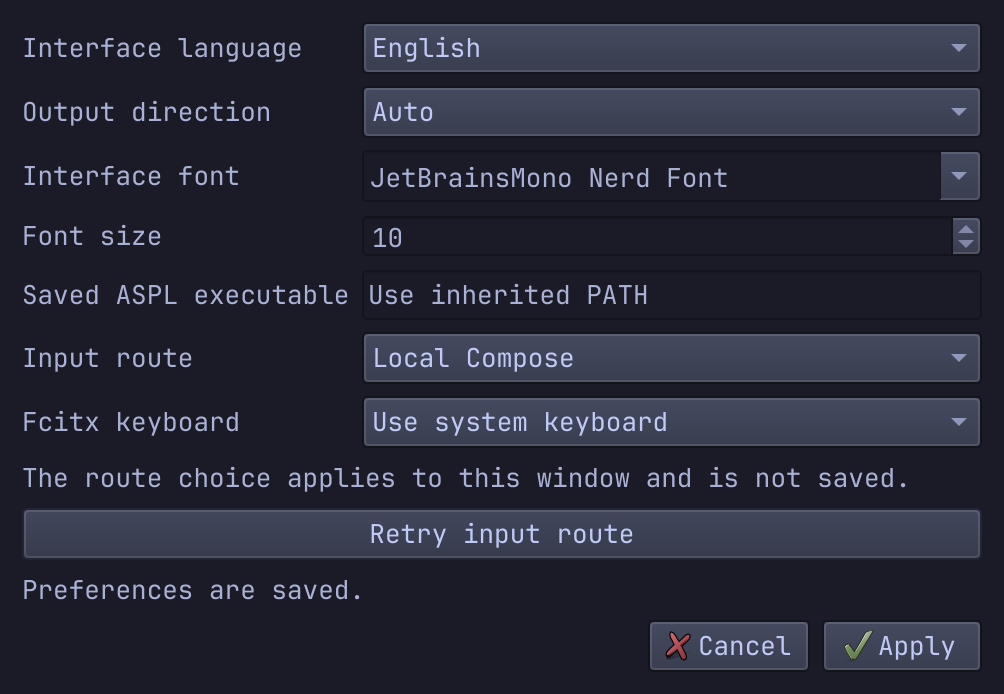
These instructions describe the verified Console 0.8.0 archive. The capture below shows its actual Settings dialog. Opening Settings does not change the command or run that owns the main prompt. Text fields in the dialog have their own input owners and local editing keys.
Choose language and output direction
Choose Arabic or English for this window's interface. Other open windows keep their choices. Retained record labels keep the language captured when they were added; a running child's diagnostic language also stays fixed until that run ends.
Output direction starts in Auto; LTR and RTL are explicit display choices for scrollback. They do not translate or reorder the logical text you copy. The prompt row follows the interface direction. An empty draft follows that direction; entered text follows its first strong character, with neutral text LTR. The current path uses the available row width before wrapping.
Choose fonts and base size
The default interface font is JetBrainsMono Nerd Font at 10 pt, with Noto Naskh Arabic and system fallback. Choose a font family or enter its name. A missing font can render with fallback; its saved name is not proof that it is installed. Valid older preferences are retained individually, including unavailable font names.
Base size accepts 7 to 36 pt. Window zoom starts at 100%, changes by 10 percentage points with Ctrl+Plus or Ctrl+Minus, and ranges from 50% to 200%. Ctrl+0 resets zoom. Changing base size keeps the current zoom. Zoom is separate from the saved base size and does not survive closure.
Select the ASPL executable
The Saved ASPL executable field accepts a tool path. Clear it to use inherited PATH. Apply validates the choice as a usable regular executable through a cancellable helper before changing preferences. This is file validation, not proof of ASPL version compatibility. Install the separately required ASPL 0.7.0 and follow tool selection.
Selection order is launch --aspl, saved executable, then inherited PATH. An invalid launch override or saved choice fails without fallback. A relative choice is anchored to the original physical launch directory, independently of later Console cd. Valid relative legacy choices are migrated to an absolute path while preserving their native bytes; invalid choices remain visible errors you can clear or correct.
When launched with --aspl, Settings shows the active launch override separately. Changing the saved field does not replace it. Relaunch without the override, or with a corrected one, to change that selection. See launch options.
Choose an input route and Fcitx keyboard
The Input route field selects Fcitx, IBus or Local Compose for this window. That choice is separate from interface language and desktop-wide input configuration. The Fcitx keyboard field offers Use system keyboard, English US and standard Arabic. Its preference is saved, but the route is window-only. Arabic uses Western digits on its number row.
Apply a changed route before using Retry input route. Retry acts on the current route immediately, using fresh input state. Cancelling the dialog afterwards does not undo that Retry. If the dropdown names a different route, Retry asks you to apply it first. Unsent text and unfinished composition are tracked separately under their input owners; see input ownership and explicit Retry.
Apply, validate or Cancel
Apply first displays Validating settings and temporarily disables preference controls. Cancel and Escape remain available during validation and dismiss the dialog without applying its pending choices. Invalid executable selection leaves the dialog open with the reported reason; correct it or clear the field, then Apply again. No preference changes until validation succeeds.
Successful Apply closes the dialog, changes the live window and starts saving the persistent preferences. Input-route readiness and preference-save success are separate from executable validation. Inspect their messages rather than assuming that a closed dialog means input is ready or preferences are durable. Cancel preserves the live choices, including any Retry already performed.
Know what is saved and recover a save failure
The existing Qt settings store saves interface language, font family/base size, output direction, saved executable, window geometry and Fcitx keyboard preference. Input route, zoom, current directory, command history, scrollback, drafts, unfinished composition and search state are window-only. Closing discards them; preferences do not restore a run or its input. Remembered source/directory controls have been removed.
Saving runs in a separate helper. A failure reports that the live preferences are unsaved and apply only to this window; Settings also displays the saved/unsaved state. The live choices remain usable, but do not assume a later launch will restore them. Correct the reported settings-storage or helper problem, reopen Settings and Apply again. Cancel does not save, and Retry input route does not repair preference saving. For missing installed helpers, use the complete installation layout.
Use Settings troubleshooting for validation or save failures.
Settings in Console 0.8.0